
Continuous screening
Put your clients under surveillance and get alerted when they appear in a list.
Definition
Continuous Screening automatically monitors your existing customer base against your selected Sanctions and PEP lists. When a list is updated, you will be instantly alerted if one of your customers newly appears on a watchlist. This ensures ongoing compliance without the need for manual or periodic re-screening.
Configuration
Presentation
You can access the feature by clicking on the Continuous screening button in the left menu. You will then see the list of your existing continuous screenings.
You can create a new monitoring by clicking on Add a configuration.
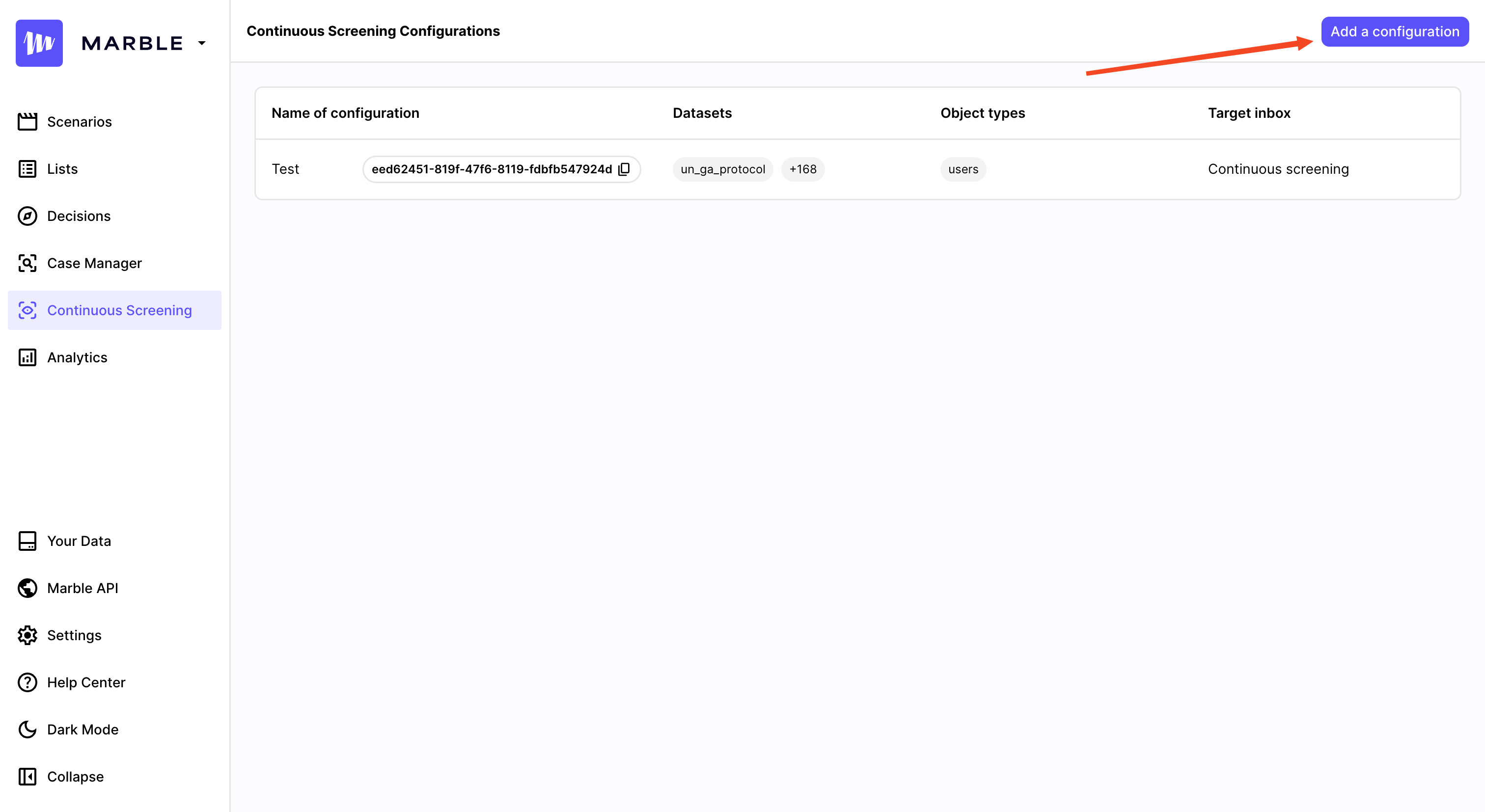
The Continuous Screening homepage
Object mapping
Once on the continuous screening configuration page, the first step will be to map the object you will screen to the required lists input:
- Give your screening a Name and a Description to identify it easily
- Select the object you want to monitor — usually users or companies.
- Indicate the type of entity you will monitor, among Persons, Companies or Vessels.
- Map your object's fields to the standard lists' fields. This step is necessary to get relevant results when screening your entries.
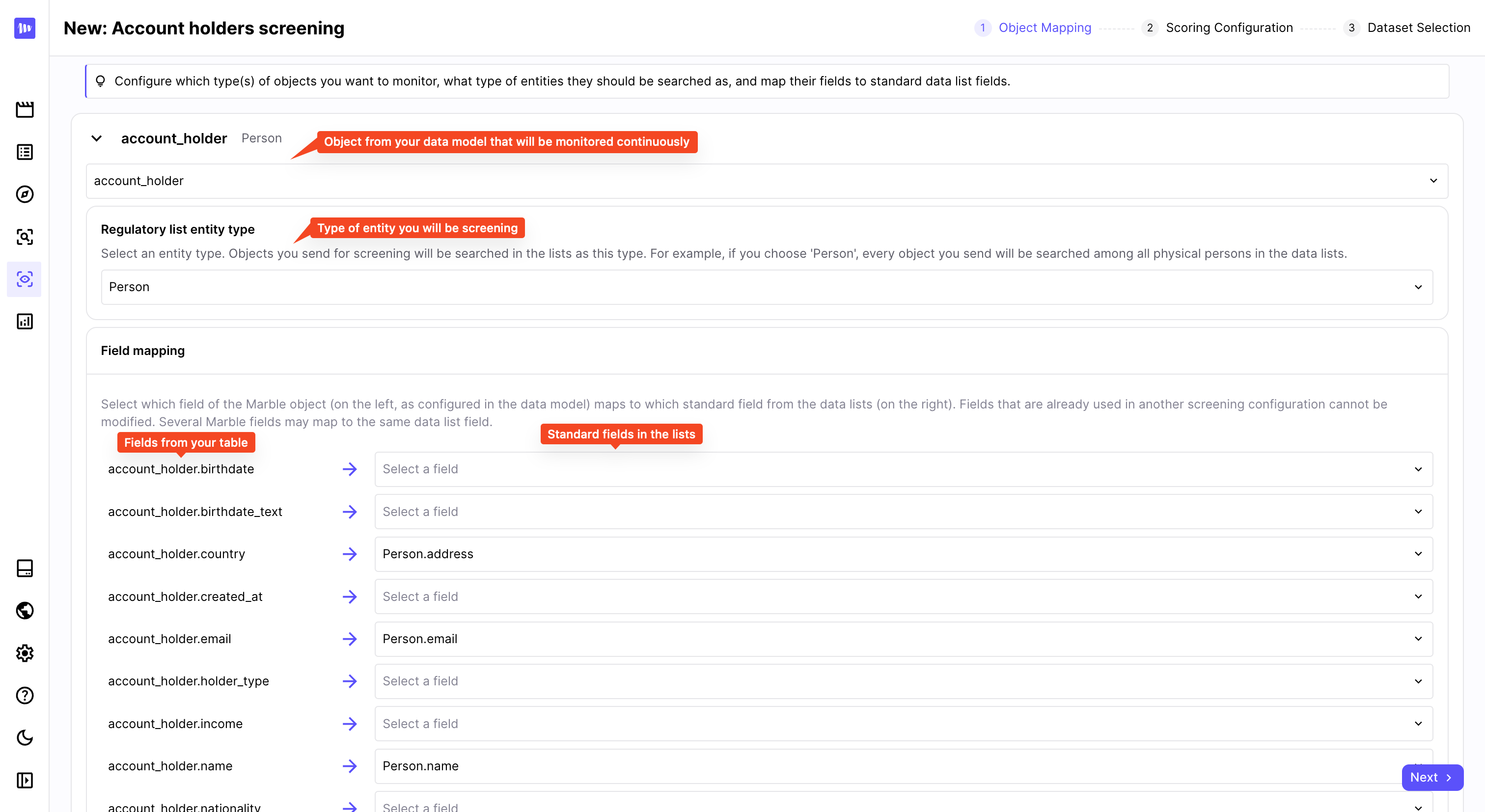
Map your object to the lists standards
Dataset selection
Once your scoring configuration done, the last step is to select the lists against which your will screen your customer base.
To do so, simply select any Sanctions, PEP or adverse media lists you need in any region, or just select all the lists from a region.
When done, click on Save configuration and your continuous screening is now live!
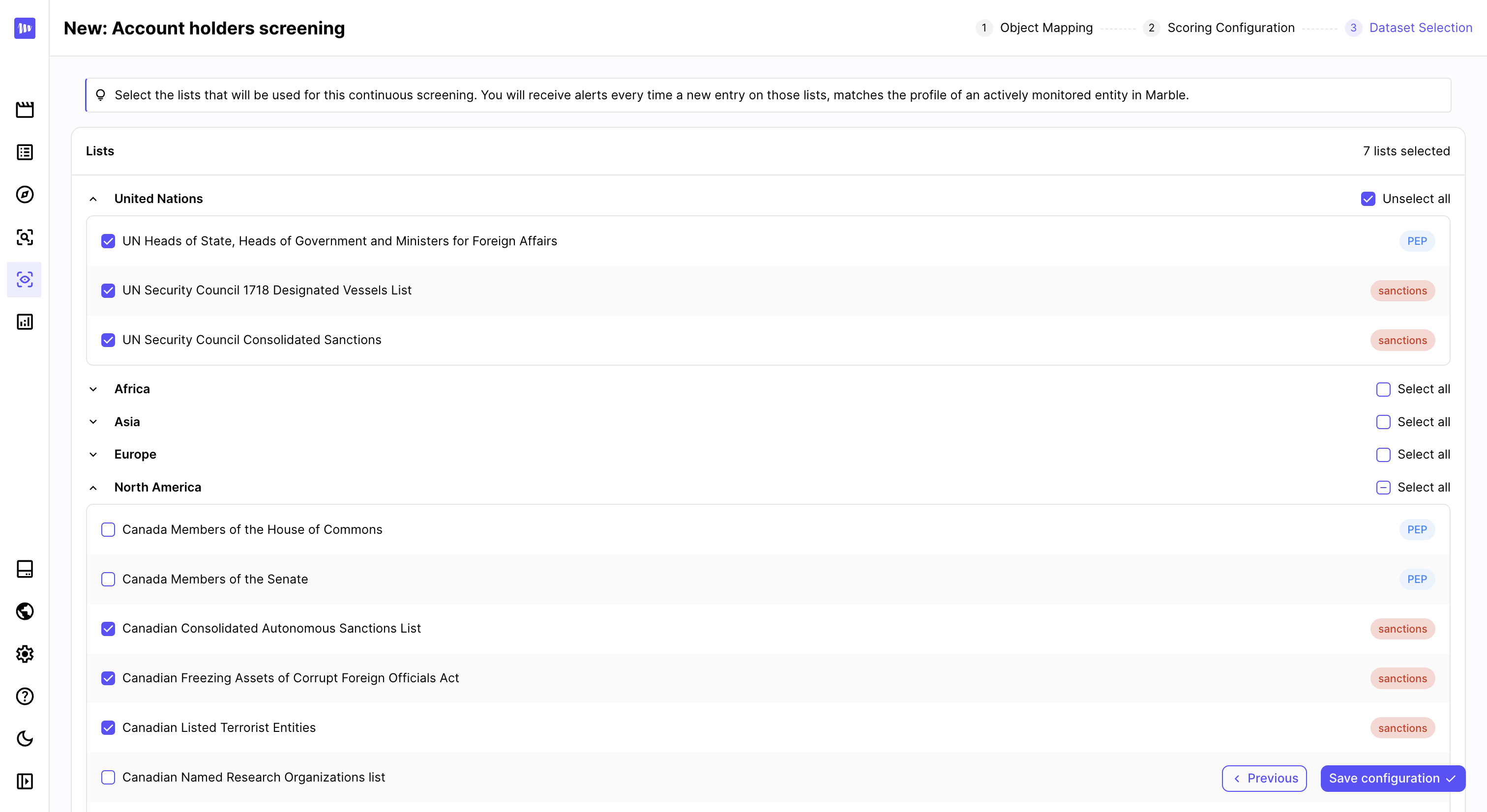
Select the lists of your choice
Scoring configuration
Once the mapping done, you will land on the Scoring configuration page. It works the same way as a regular screening rule:
- Minimum match score: it is the entity matching threshold from which alerts will be triggered. A score too low (< 60%) is likely to generate a lot of false positives. A score too high (> 90%) may miss legitimate matches.
- Maximum number of hits: it is the number of hits threshold above which alerts will not be triggered. It allows you to discard screening having too many matches to avoid false positives.
- Alert automation: select the inbox in which alerts should be displayed, or create a new one.
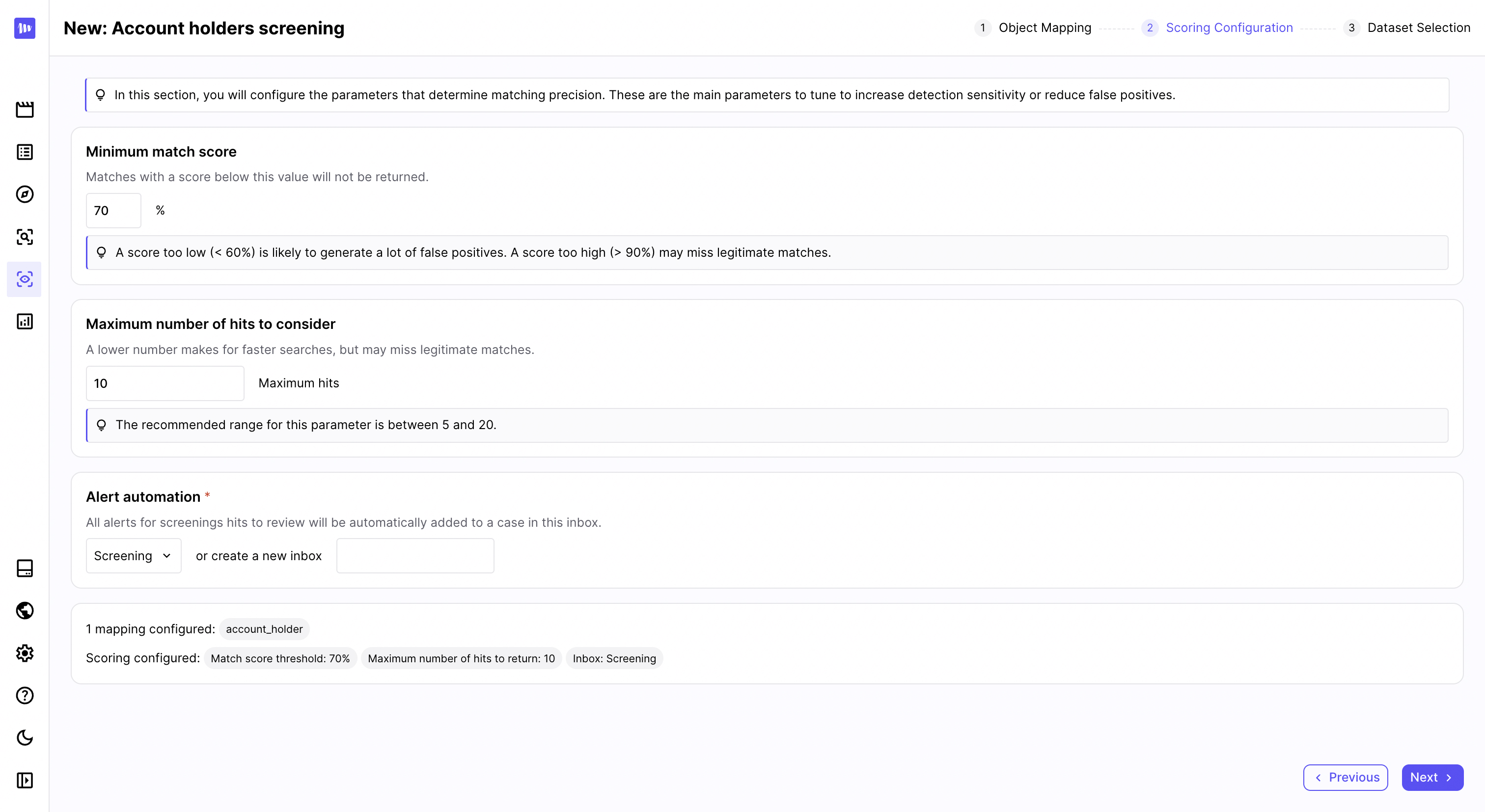
Configure your scoring parameters
Alerts
Activation
Once your configuration ready, you should activate your continuous screening on the users of your choice, using the dedicated API.
This API call will:
- activate the continuous screening for the object_id you indicated. This means that you will get alerted if the activated object appears on a future update of the lists you chose.
- screen instantly the entity you indicated, if you set
skip_screento false in your call. If you set it to true, the object won't be screened at this call, only on future updates.
Investigation
When a continuous screening alert is created, a dedicated case will automatically be created in the inbox you selected in your configuration.
The case is close to the usual ones you can see in the Case manager. It allows you to:
- review the matches by clicking on the "To review" button next to a match
- add notes and documents using the investigation timeline
- add tags, assign the case to someone or escalate the case
- see the details about the search and the object from the right the section
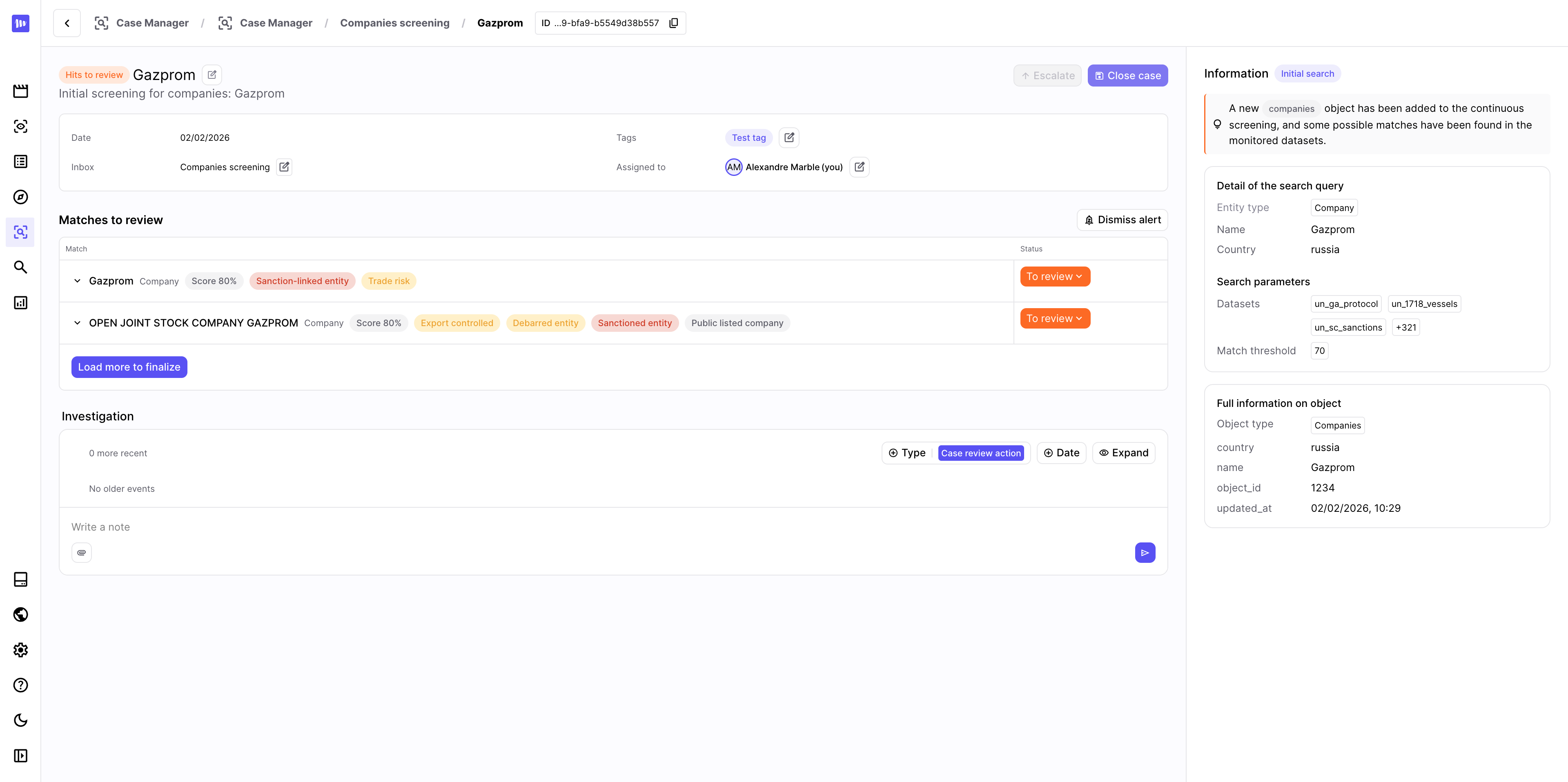
The screening case allows you to review the matches
Updated 4 months ago